How TM matching works in Smartcat
Translation Memory (TM) matching in Smartcat compares new source segments against your existing TM entries to find reusable translations. Match percentages indicate how closely a new segment matches stored entries, ranging from fuzzy matches (75-99%) to exact matches (100%) to…
Overview
Translation Memory (TM) matching in Smartcat compares new source segments against your existing TM entries to find reusable translations. Match percentages indicate how closely a new segment matches stored entries, ranging from fuzzy matches (75-99%) to exact matches (100%) to context-verified matches (101-103%).
When to use it
Use TM matching when you want to:
-
Leverage previous translations — Reuse work from past projects to save time and cost
-
Maintain consistency — Ensure the same source text gets the same translation across documents
-
Speed up translation — Automatically insert high-confidence matches without manual work
-
Reduce costs — TM matches are priced the same as new AI translation and is typically less expensive than human translation and review
Key concepts
| Term | Definition |
|---|---|
| Fuzzy match (75-99%) | Source text is similar but not identical to a TM entry. Requires translator review. |
| 100% match | Source text is identical to a TM entry, but surrounding context was not verified. |
| 101% match | Source text matches AND one adjacent segment (before or after) also matches the TM context. |
| 102% match | Source text matches AND both adjacent segments match the TM context. |
| 103% match | Source text matches AND the segment's key/ID matches (software localization files only). |
| Context metadata | Information about surrounding segments stored with each TM entry to enable context matching. |
How it works
Match percentage calculation
When you open a document, Smartcat compares each source segment against your enabled TMs:
| Match Type | What it means | Confidence level |
|---|---|---|
| 75-99% | Similar but not identical text. Differences may include word changes, additions, or deletions. | Low — requires review |
| 100% | Exact text match. The source is identical, but context wasn't verified. | Medium — likely correct |
| 101% | Exact match + one adjacent segment matches context stored in TM. | High — context verified |
| 102% | Exact match + both adjacent segments match context stored in TM. | Very high — full context match |
| 103% | Exact match + segment key/ID matches (software files only). | Highest — key verified |
💡 Tip: Review 100% matches carefully during translation — they may need adjustment for the specific context, while 101%+ matches provide additional confidence through context verification.
How context matching works
When Smartcat stores a segment in the TM, it also stores the content of the previous and following source segments as context metadata (x-context-pre and x-context-post).
Example of what's stored in the TM:
-
Previous segment: "I live in a small village."
-
Source segment: "I have a small house." → Target: "J'ai une petite maison."
-
Following segment: "It is blue."
When the same segment appears in a new document:
-
If neither adjacent segment matches → 100% match
-
If one adjacent segment matches → 101% match
-
If both adjacent segments match → 102% match
Context matches provide higher confidence that the translation is correct for the specific location in the document.
💡 Tip: For maximum consistency, use TMs with context matches (101%+) as they provide the highest confidence that the translation is appropriate for the specific document location.
How key ID matching works (103%)
For many files (JSON, XLIFF, RESX, etc.), segments often have unique identifiers or keys. Smartcat can use these keys as an additional context signal.
When a document uses ContextId matching (determined by file format):
-
A 103% match means the source text is identical AND the segment's key/ID matches the TM entry
-
This is the highest confidence match available
⚠️ Key ID matching (103%) is only available for file formats that contain segment identifiers. Standard document formats use previous/next context matching (max 102%).
TM matching priority over AI translation
Smartcat processes segments in this order:
-
TM lookup first — Each segment is checked against your TMs for matches
-
AI translation second — Segments without TM matches (or below your threshold) go through AI translation
By default, TM matches at 100% and above are confirmed automatically and do not require human review. This means:
-
Exact TM matches are trusted and applied without additional processing
-
AI translation only runs on segments that don't have sufficient TM coverage
You can configure this behavior in translation rules to require different thresholds for auto-confirmation.
Requirements and Limitations
Requirements
-
The TM must contain entries for the same language pair as your document
-
For automatic translation to insert matches automatically, you must configure translation rules
Limitations
-
The default minimum match threshold is 75% — matches below this are not shown
-
103% matches are only available for file formats with segment keys (software localization files)
-
Context matching requires the TM to have been populated with context metadata
Configuring translation rules
Step 1 — Open automatic translation settings
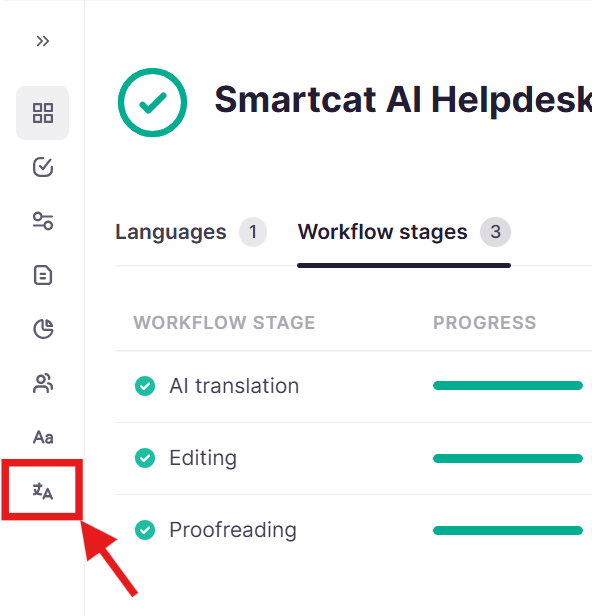
- In the left sidebar in a project, click Translation rules
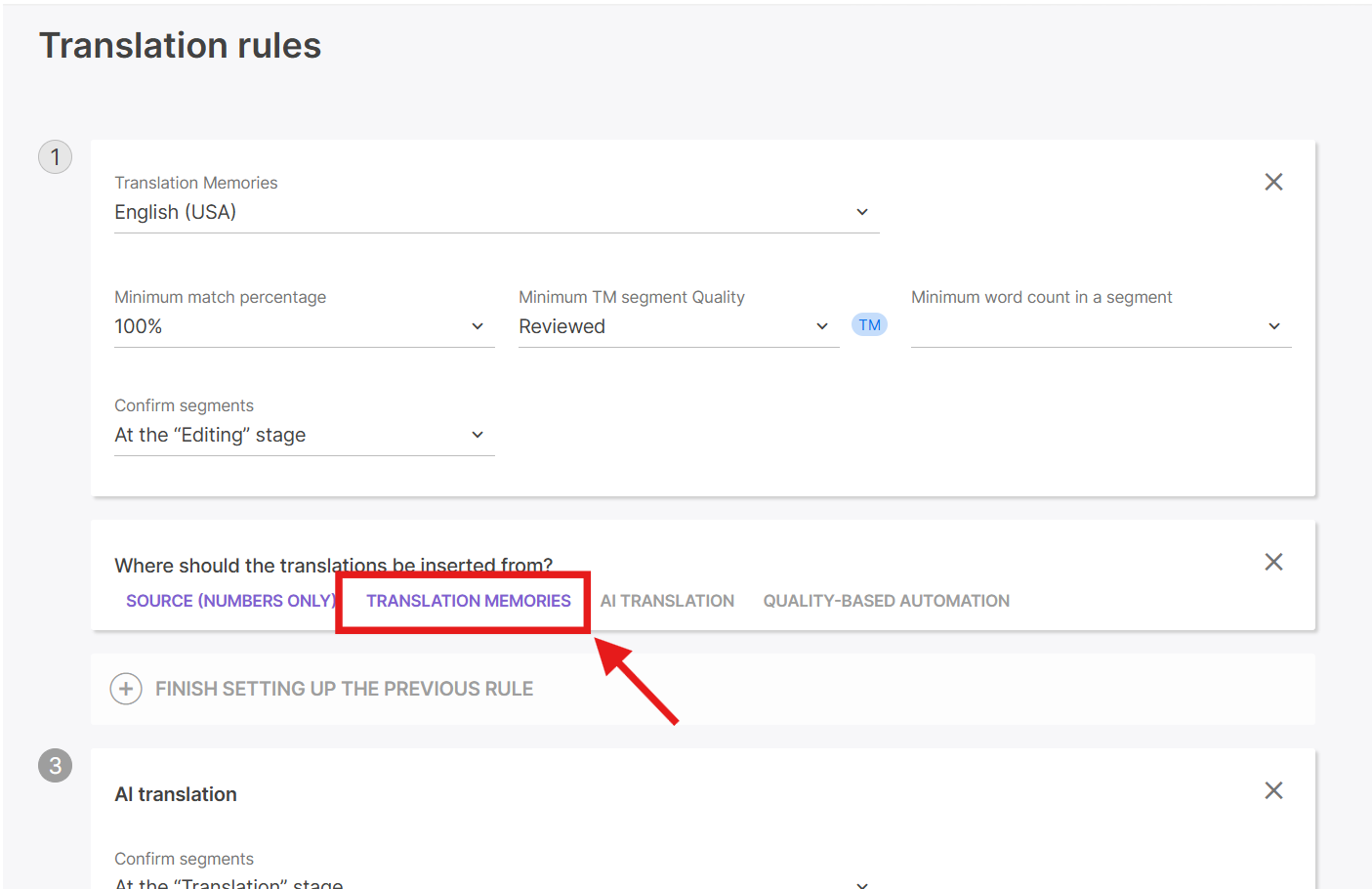
- Click Add Rule → Translation Memories
Step 2 — Configure settings for the translation rules
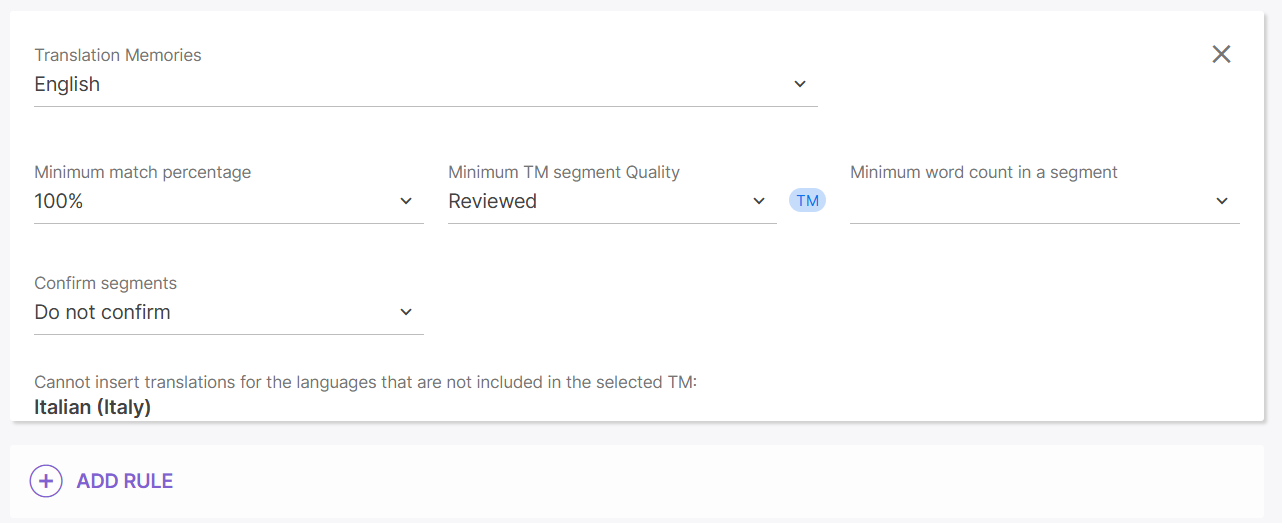
-
Select which TM to use from your enabled TMs
-
In the Minimum match percentage field, specify the threshold for inserting matches
-
Optionally, set Minimum TM segment Quality to only use reviewed TM entries
-
Optionally, set Minimum word count in a segment to avoid inserting matches for very short segments
Step 3 — Configure confirmation behavior
-
In the Confirm segments field, specify whether to auto-confirm inserted translations
-
For high-quality TMs with 100%+ matches, you can confirm at the translation stage
-
For lower thresholds or uncertain TM quality, leave segments unconfirmed for translator review
💡 Tip: Set up separate rules for each TM if you have multiple — rules execute in order, so put your most reliable TM first.
Step 4 — Save and run
Click Save & Run to apply the rules to all documents in the project.
💡 Tip: Use the "Pretranslate" button after configuring rules to apply TM matches to existing documents in your project.
Troubleshooting
Problem: TM matches aren't being applied to my project
Solution: Check these common causes:
-
Wrong language pair — Ensure the TM contains entries for your document's source and target languages
-
No translation rules — TMs provide suggestions in the editor, but automatic insertion requires translation rules
-
Threshold too high — If your minimum match percentage is set to 100%, fuzzy matches won't be inserted
-
TM is empty — Check that the TM actually contains entries (view TM contents in the TM management area)
Problem: I see 100% matches but expected 101% or 102%
Solution: Context matches require:
-
The TM entries to have been created with context metadata (from a previous project with adjacent segments)
-
The adjacent segments in your new document to match those stored in the TM
-
If you imported TM entries from an external file, context metadata may not have been included
Problem: I don't see 103% matches for my software files
Solution: 103% matches require:
-
A file format that contains segment keys/IDs (JSON, XLIFF, RESX, etc.)
-
The TM entries to have been created from the same or similar file with matching keys
-
Standard document formats (DOCX, PDF, etc.) use previous/next context matching and max out at 102%
Still need help?
Our support team responds within one business day.